
Guides / Generate diagram content with AI
Generate Diagram Content with AI — Vexlio
Describe what you need in plain language (you know the drill) and Vexlio generates a set of styled, reusable components right on your canvas. You refine them by re-prompting, then drop them into your drawing, fully editable, with nothing to import or export.
Starting from a blank canvas is the slowest part of making a diagram. Vexlio's AI generation gives you a running start: type what you're after like "lifecycle icons," "a row of database and queue shapes," or "UML class boxes for an order system", and get back a tidy set of ready-to-edit components. This guide covers how it works, what it does and deliberately doesn't do, and how to get good results.
No account required
What the AI generates
Vexlio's generation is built around a simple idea: it gives you the building blocks, and you stay in control of the diagram. A prompt produces a set of reusable, styled components — the shapes, icons, and labeled elements you described — laid out so you can pick them up and use them.
Two things it intentionally leaves to you:
- It doesn't connect things with arrows. Where the relationships go is a design decision, and drawing them yourself takes seconds with Vexlio's connectors while keeping the layout exactly how you want it.
- It doesn't arrange the diagram for you. You place the components where they belong. That means no fighting an auto-layout that "helpfully" moved everything. The generated pieces are yours to edit and position.
The result is fast content creation without giving up authorship. You get professional-looking, styled components in seconds, then assemble them into the diagram you actually had in mind.
Generating content, step by step
Click Add content
Click + Add content in the toolbar. This is where AI generation lives. You don't need to bring your own AI account: it's part of the app you're already drawing in.

Describe what you need
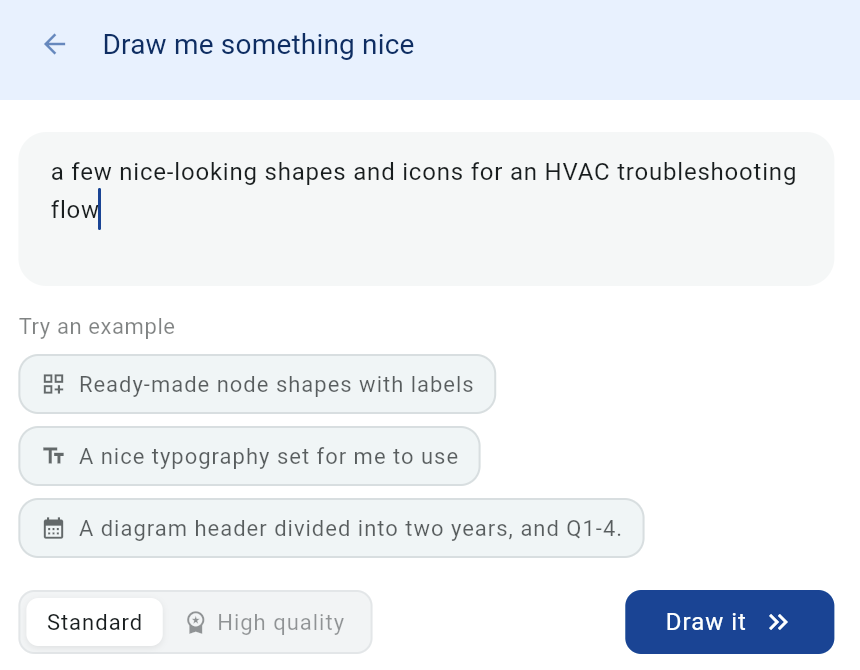
Type a short description of the components you want, for example, "a few nice-looking shapes and icons for an HVAC troubleshooting flow." Be specific about the things, not the layout. If you're stuck, tap one of the example prompts, and hit Draw it.
Refine by re-prompting
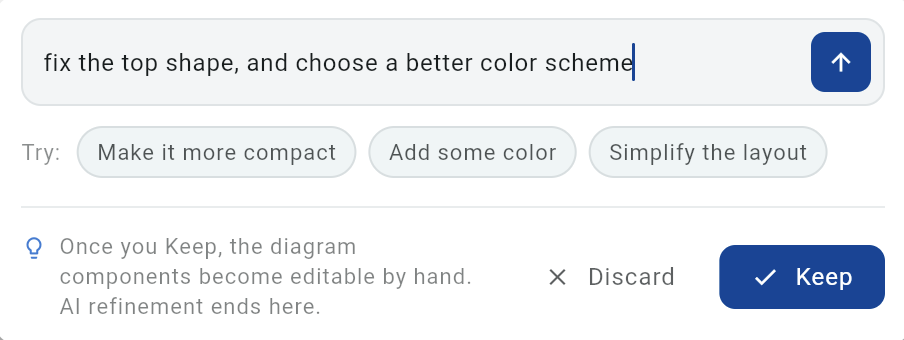
You'll see a preview of what was generated. If it's not quite right, adjust and try again: "fix the top shape, and choose a better color scheme," or a quick nudge like Make it more compact, Add some color, or Simplify the layout. Each pass shows you the result, so you can iterate until the set matches what you wanted.
Keep it: the components drop into your drawing
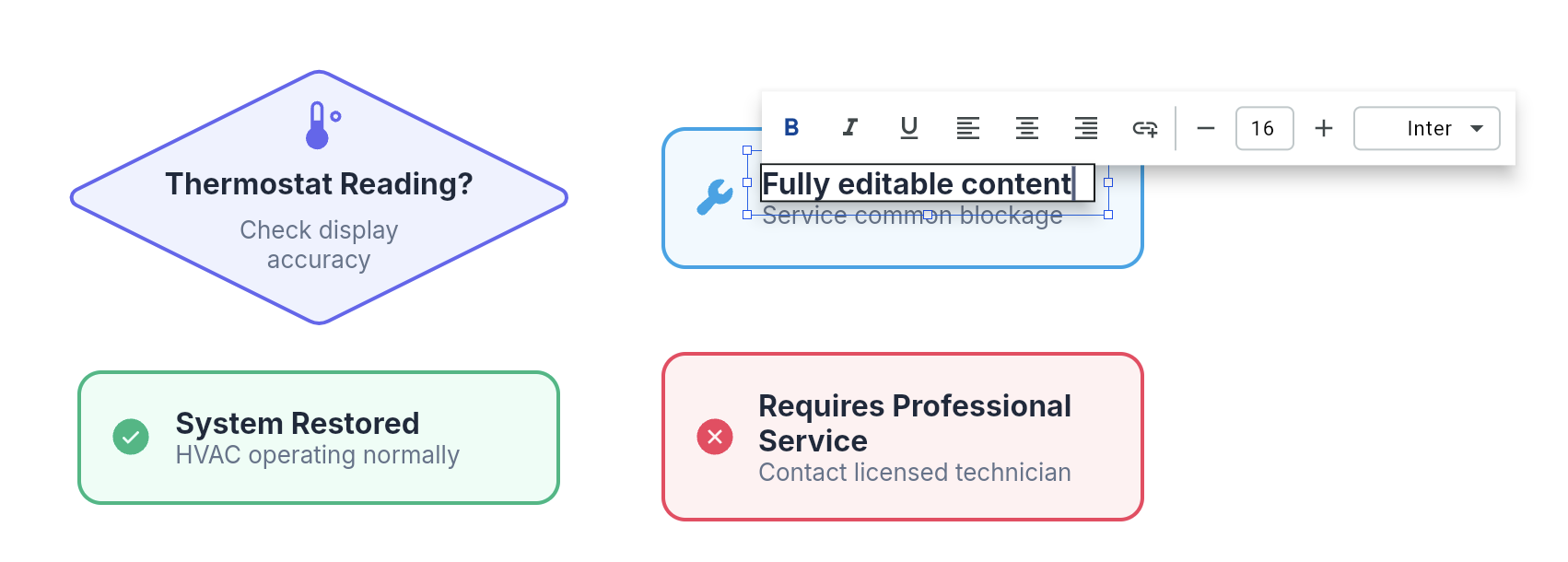
Click Keep and the components are placed on your canvas as ordinary Vexlio objects. From there they're fully editable: retype a label, recolor a shape, resize it, connect them with arrows, group them, copy one to reuse. There's no separate "AI layer" and nothing is locked; they behave exactly like anything you'd draw by hand.
Getting good results
- Ask for components, not a finished diagram. The generator is at its best producing the pieces ("an API gateway, two microservices, and a database") and arranging and connecting remains your job.
- Name the domain. "Kubernetes," "BPMN," "network topology," or "org chart" gives the model the vocabulary and conventions to match, so the shapes come back looking the part.
- Iterate in small steps. Generate a rough set, then re-prompt one change at a time. It's faster to iterate with with e.g. "make them all the same width" than to describe everything perfectly up front.
- Generate more than once. Don't feel like you need to accept the first thing the AI gives you. Refine away to your heart's content.
Keep going
- How to make an interactive diagram with popups — turn your generated components into something clickable.
- How publishing works in Vexlio — share the finished diagram as a single no-sign-in link.
- Vexlio user guide — the tools, UI, and shortcuts for editing what you generate.